Support
The support module enables you and your users to manage support requests. It is intended to replace the Tickets module. As of version 6.7, both modules are supported. This may make it easier for administrators to migrate from the obsolete Tickets module to the more modern Support module.
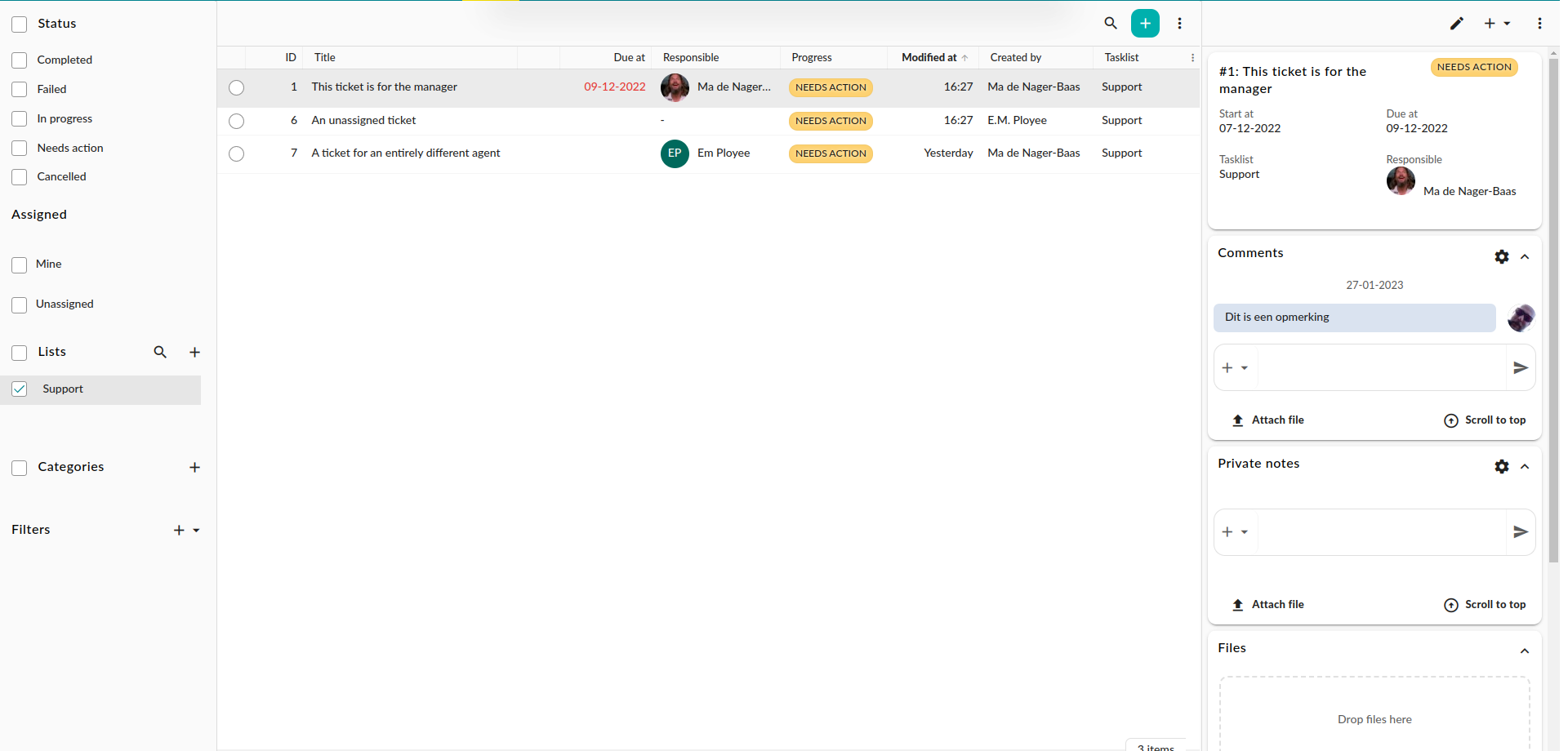
Support module
The tickets module supports:
One can install and configure the ‘Help’ module to enable end users to submit support requests from within GroupOffice. Its official name is ‘Support Client’, but for the sake of disambiguation we refer to it as the ‘Help’ module.
Roles
End users are the users that need support and will enter tickets.
Ticket agents are the people who need to pick up and solve said tickets.
Managers configure the ticket module.
Under the hood
As of version 26, when an end user sends an email to a support mailbox, they are matched to an existing principal in GroupOffice. In this context, a principal is either a user or a contact. If they do not exist, a new contact is created.
If you use a version prior to 26, each support ticket is matched to a user. Therefore, you must enable user registration in the Authentication tab in System Settings.
As any user of both the tasks module and support module will be able to tell, support tickets and support lists are considered tasks and task lists respectively. The support module is a very specific implementation of the tasks module.
Entering a ticket
There are roughly three ways to enter a ticket:
Send an email to a certain mailbox;
Create one manually from within the Support module;
Create one manually from within the Help module;
Help module
This is a simple module that enables end users to submit tickets from within GroupOffice itself. In this module, the user can see their own submitted tickets. Entering a new ticket is as easy as clicking the button ‘New Request’:
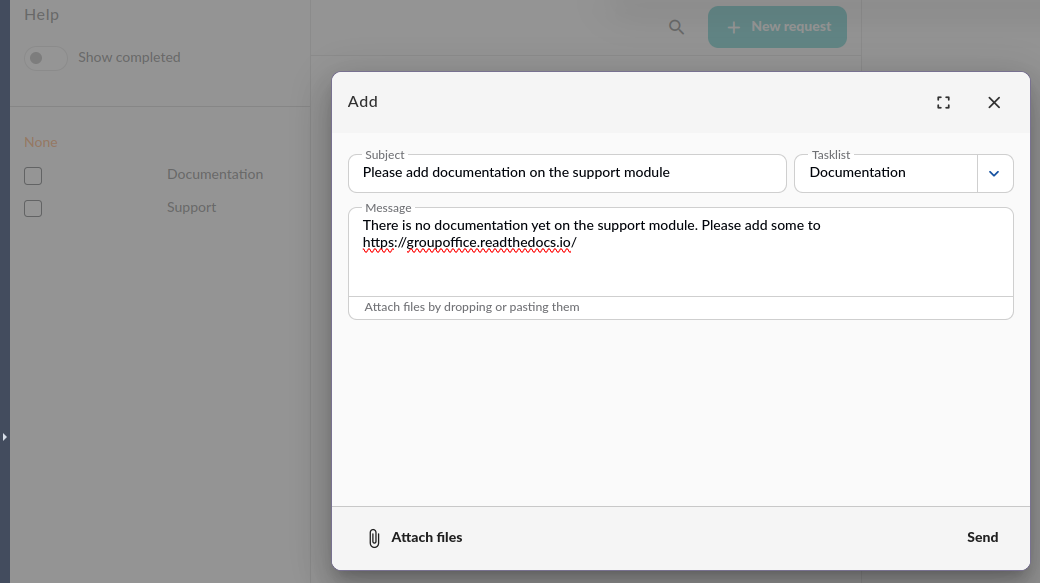
Submit a support request from within GroupOffice
Usage by ticket agents
Ticket types
Tickets are commonly divided among certain types, depending on the nature of the ticket. For a ticket agent, a bug fix is commonly different from a documentation request or an invoicing issue. The administrator can assign permissions by ticket type, both on the customer side and on the agent side.
In Group-Office, there is a one-to-one relationship between a task list and a ticket type. In other words, in Group-Office, a ticket type and support list are one and the same and will be used interchangeably in this context.
Ticket categories
A secondary means of adding contextual information to tickets is by assigning categories. These are agnostic of ticket type or permissions. Categories are intended to act as quick filters.
Ticket statuses
In order to know which tickets are still actionable, you can assign ticket statuses. At the time of this writing, we use the standard task statuses as specified in the iCalendar specification.
Administration
Module permissions
When a user has ‘Manage’ permissions for the Support module, they will be considered a manager. Users and groups with use permissions for the module are considered ticket agents.
You need the mayChangeTasklists permission to manage support lists and mapChangeCategories permission to manage ticket categories.
System settings
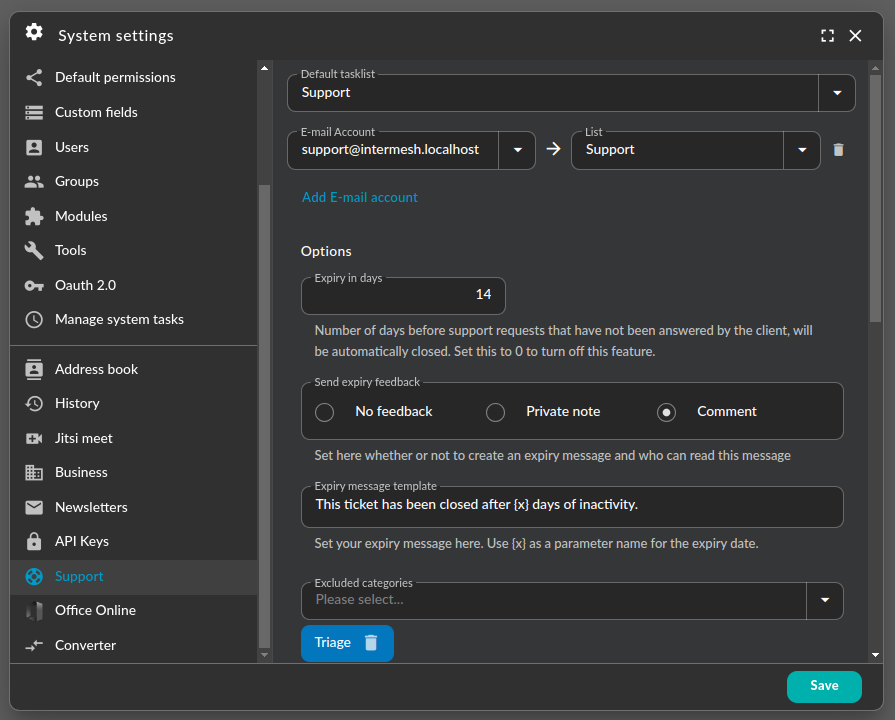
System settings panel for the support module
The system settings panel allows the administrator to configure task lists and link email accounts to said task lists. A task list is considered its own ticket type. This will enable the administrator to assign different ticket types to different users or groups as they wish.
Emails sent to a configured mailbox will be automatically converted to tickets.
Support list management
Support lists are configured in the same way as task lists, but with two major differences:
An extra permission type to allow user to enter support requests with the Help module.
Extra notification settings
Notifications
As per version 26.0.43, you can set the following notification options:
Upon importing an IMAP message, Notify the customer that a new ticket has been created.
Notify support agents that a new ticket has been made in a certain support list.
Notify a support agent when a ticket has been assigned to them.
All these notifications must be set explicitly.
Expiry options
As of version 6.8.57 it is possible to automatically close inactive tickets. An automated task is run daily to find and close inactive tickets. An inactive ticket is defined as follows:
The number of days after which to expire a ticket is set to a value greater than zero,
Its status is ‘In progress’;
The last message for this ticket was by a ticket agent, i.e. the requester has not sent the latest reply.
The last message for this ticket is older than the set amount of days.
Setting the number of days to zero will disable this option entirely.
Feedback
It is possible to customize the message that is sent by the system when a ticket is closed. You can also set whether to generate a feedback message and who will be able to see it. Either no message is sent, it is saved as a comment and sent to the requester or it is saved as a private note.
Excluding types and categories
If certain categories or ticket types are set as ‘excluded’, any ticket that has that category or type will not be automatically closed.
Migration of tickets
The migration from the Tickets module is easy. Log into the command line on the GroupOffice server, navigate to the
source subdirectory (normally /usr/share/groupoffice/) and run the following command:
sudo -u www-data php /usr/share/groupoffice/cli.php business/support/Tools/migrate --userId=1 -c=/etc/groupoffice/config.php
Any ticket that has not been previously imported into the support module will be imported. Any imported support request will have a custom field that refers to the old ticket ID for archival purposes. This will enable the administrator to run the import script multiple times without risking duplicate support requests.
Troubleshooting incoming e-mail
If you mapped an e-mail account to a tasklist and it’s somehow not working you can run this command on the command line to get verbose debug output:
sudo -u www-data /usr/share/groupoffice/cli.php core/System/runCron --name=ImapImport --module=support --package=business --debug