Introducing the PDF Editor Module

Edit PDF documents directly in GroupOffice

Merijn Schering Merijn ScheringJuly 09, 2026
Introducing the PDF Editor Module

Documents rarely arrive in their final form. A contract needs a signature block, a scanned invoice needs a name blacked out before it goes to a third party, a colleague wants to leave a note on page three without printing anything. Until now, handling any of that meant reaching for a separate, external PDF editor — yet another tool outside GroupOffice just to mark up a file that already lives there.

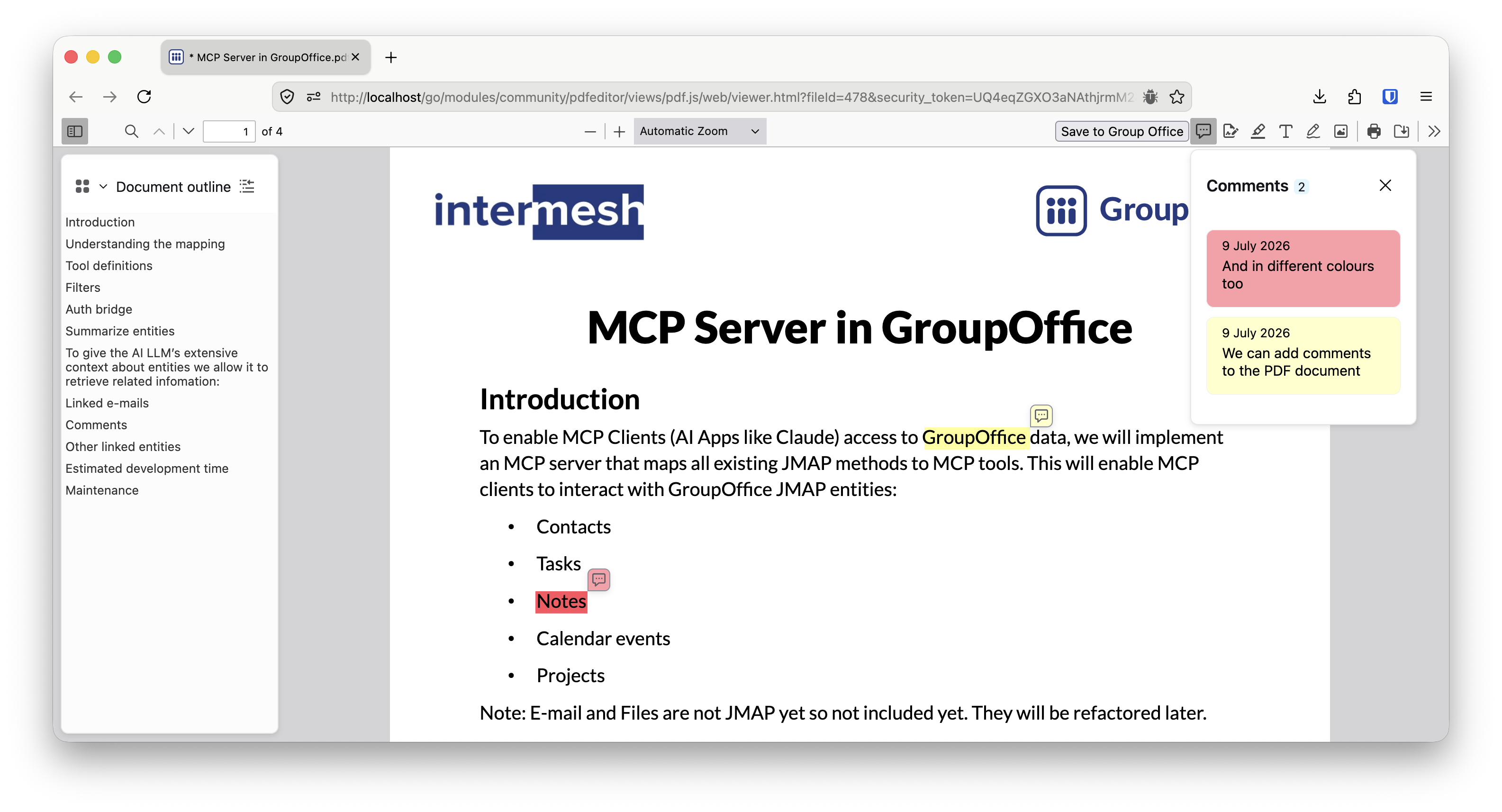
The new PDF Editor module removes that dependency entirely. PDFs already preview directly in the files module's preview pane, and now that same view lets you edit the document on the spot — add images, redact content, drop in comments — and save your changes straight back to GroupOffice with a dedicated Save to GroupOffice button. No external editor, no exporting, no juggling duplicate versions.

What you can do with it

Add images Drop a logo into a letterhead, insert a signature image, or paste a scanned stamp onto a form — all placed and resized directly on the page. This is especially useful for teams that regularly need to slot a signed signature or company seal into outgoing documents without switching tools.

Redact sensitive information Before sharing a document outside your organization, you can black out names, account numbers, or any other sensitive text or image area. Redaction in the new module doesn't just draw a box over the content — the underlying information is removed from the document, so there's nothing left to copy-paste or extract later. That distinction matters for anyone handling personal data, financial records, or medical documents under GDPR.

Add comments and annotations Leave feedback exactly where it's relevant. Reviewers can drop comments on specific parts of a page, useful for internal sign-off processes, contract review, or simply flagging something for a colleague — all without the back-and-forth of separate email threads or printed redlines.

One click back to GroupOffice

The detail that changes the day-to-day experience most is probably the simplest one: when you're done editing, a Save to GroupOffice button writes your changes straight back to the file in place. There's no exporting a new file, no manually replacing the old one in a folder, and no risk of two people working from different versions of the same document. The PDF you edit is the same PDF that lives in your GroupOffice files — you just pick up where you left off.

For teams that live inside shared folders and collaborative workspaces, this closes one of the last remaining gaps between "documents we store" and "documents we actively work on."

Why this fits GroupOffice

GroupOffice has always been built around the idea that your groupware should hold your actual working documents, not just act as a filing cabinet for finished ones. Email, calendars, contacts, tasks, and files already live together in one place. Adding in-place PDF editing — including something as specific as reliable redaction — replaces an external editor in the stack entirely, and removes one more place where sensitive documents might end up copied, exported, or forgotten.

As a self-hosted platform, this also means the entire editing process — images, redactions, comments, and the underlying document — stays on your own server. Nothing is sent to a third-party editing service to get the job done.

Getting started

Open any PDF in the files module, and it appears in the preview pane as before — only now the editing tools sit right alongside it. Add your images, redactions, and comments, then hit Save to GroupOffice when you're ready. No separate app to install, no extra login. If your organization manages its own GroupOffice instance, check with your administrator to confirm the module is enabled.

As always, we'd love to hear how you're using it — whether that's cleaning up contracts before they go out the door, adding sign-off comments during review, or finally retiring an external PDF editor for good.

Twitter LinkedIn GitHub Mastodon