Microsoft Teams
This document describes how to create an Azure App registration to enable Microsoft Teams integration in the Group-Office calendar. Once configured, you can generate Teams meeting links when creating new calendar events.
Prerequisites
Access to an Azure Active Directory (Azure AD) tenant.
Administrator privileges in Azure AD.
Group-Office installation with Calendar and Microsoft Teams (Pro version) module enabled.
Microsoft 365 account with Teams enabled.
Step 1: Create an Azure App Registration
Sign in to the Azure portal at https://portal.azure.com.
Navigate to Azure Active Directory > App registrations.
Click New registration.
Fill in the registration form:
Name: Group-Office Teams Integration
Supported account types: Select Accounts in this organizational directory only (Single tenant) unless multi-tenant access is needed.
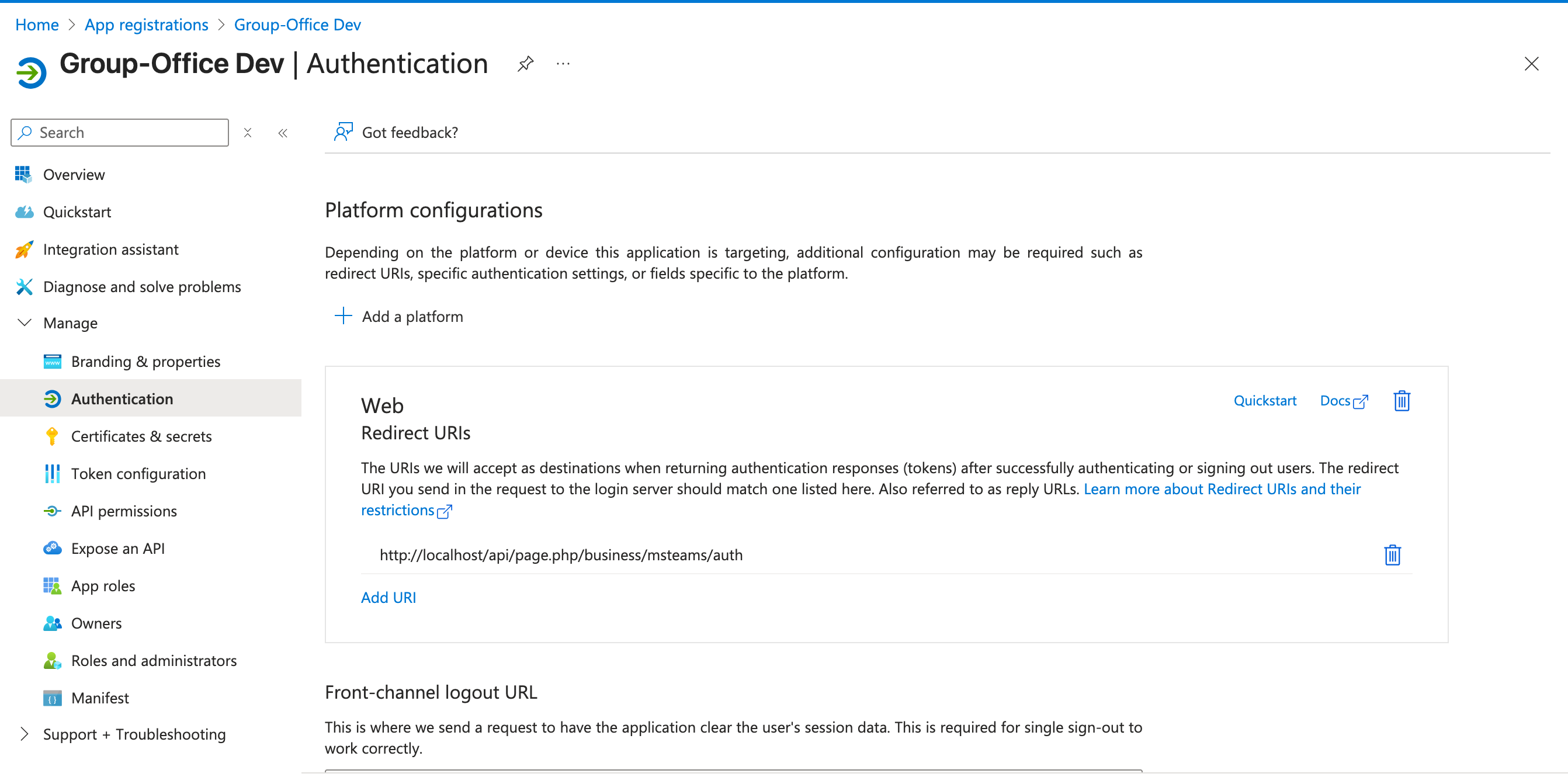
Redirect URI (optional): Set type to Web and enter your Group-Office URL followed by /api/page.php/business/msteams/auth, for example: https://yourgroupoffice.com/api/page.php/business/msteams/auth ( You can also view the correct URI in Group-Office at System Settings -> Microsoft Teams)
Click Register.
Step 2: Configure API Permissions
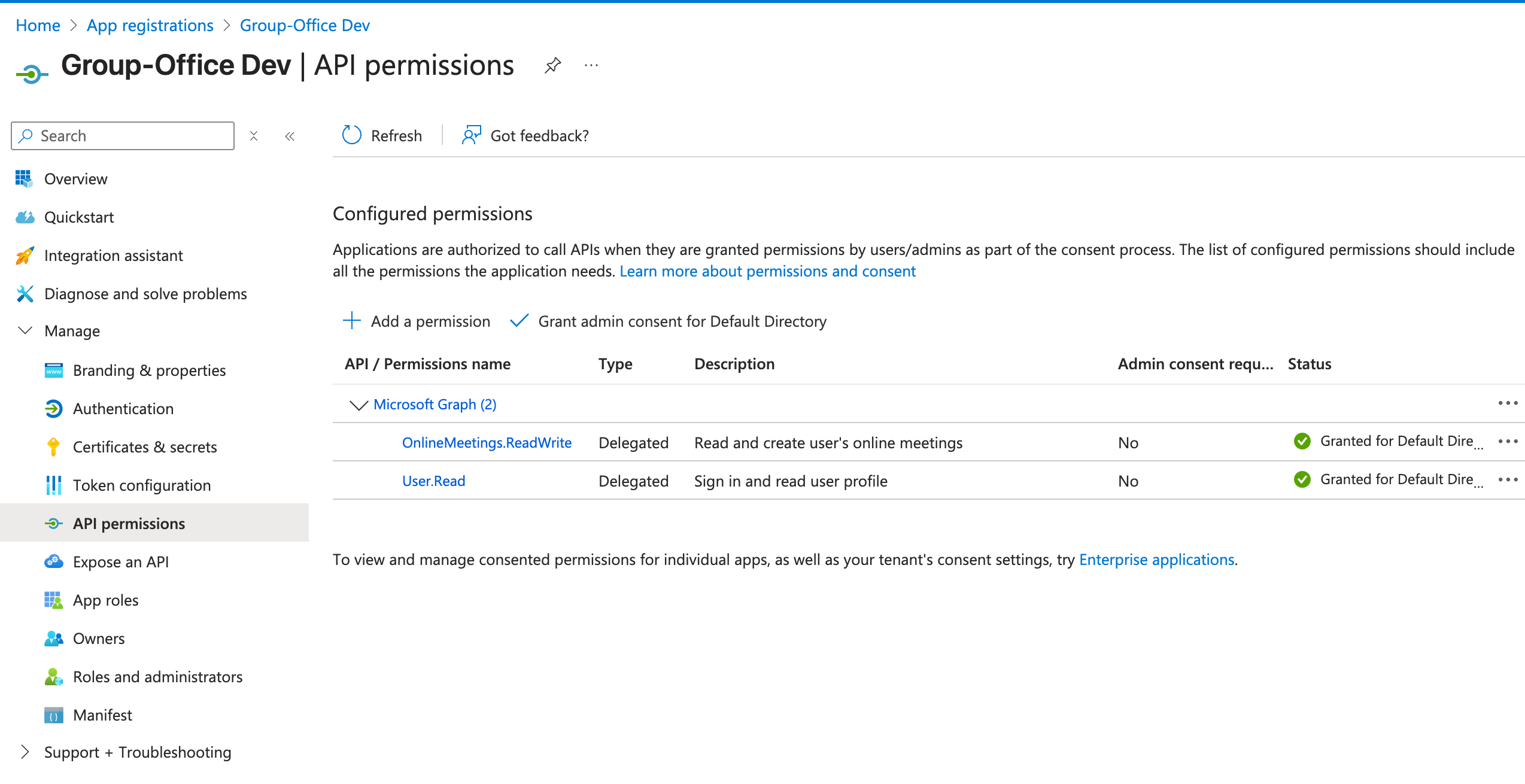
In your newly created app, navigate to API permissions > Add a permission.
Choose Microsoft Graph.
Select Delegated permissions and add the following:
OnlineMeetings.ReadWrite
User.Read
Click Add permissions.
If your app requires admin consent, click Grant admin consent for [Tenant Name].
Step 3: Create a Client Secret
Navigate to Certificates & secrets.
Click New client secret.
Enter a description, e.g., Group-Office Teams Secret.
Choose an expiration period (recommended: 6 or 12 months).
Click Add and copy the secret value immediately. You will not be able to retrieve it again.
Step 4: Collect Application Details
You will need the following information for Group-Office configuration:
Application (client) ID: Found on the app’s Overview page.
Directory (tenant) ID: Found on the app’s Overview page.
Client secret: Copied from step 3.
Step 5: Configure Group-Office
Log in to Group-Office as an administrator.
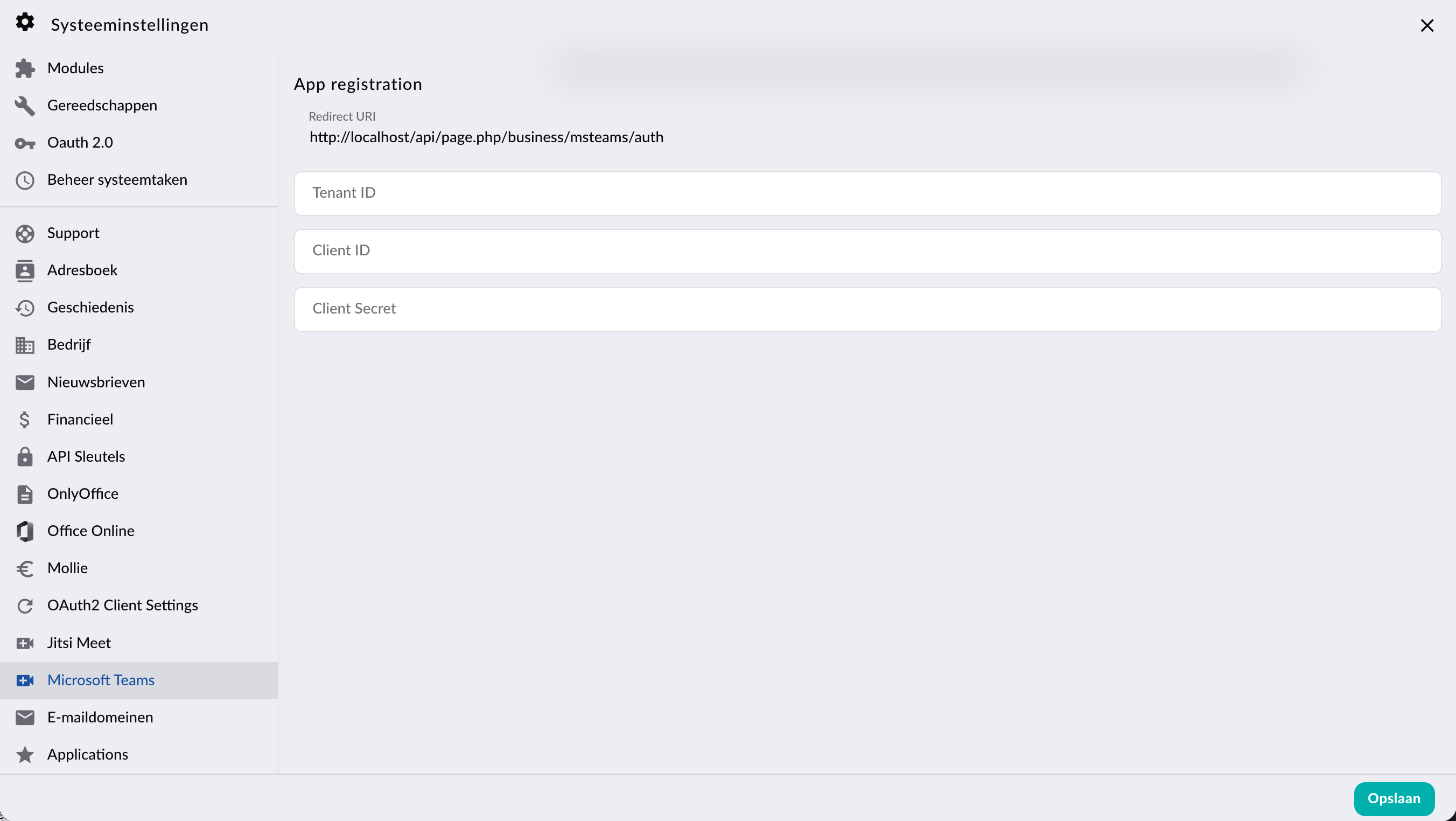
Navigate to System Settings > Microsoft Teams
Enter the Azure App details:
Client ID
Client Secret
Tenant ID
Save the settings.
Test the integration by creating a new calendar event and checking if the Add Teams Meeting button is available.
Step 6: Using Microsoft Teams in Calendar Events
Create a new calendar event in Group-Office.
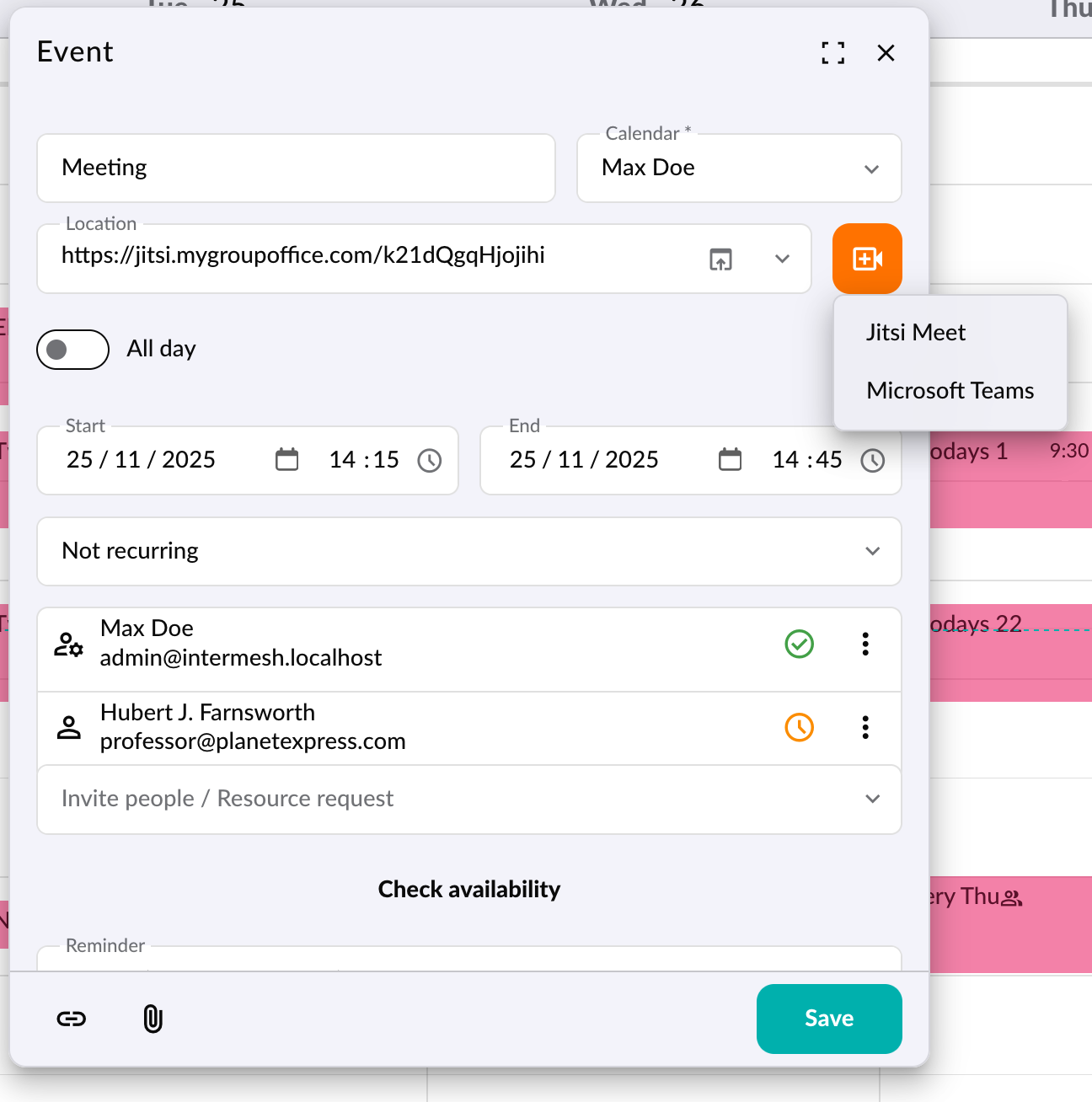
When you click the camera button next to the location field it should generate a unique Microsoft Teams link for your event.
The link is automatically added to the event location field.
Troubleshooting
Invalid redirect URI: Make sure the redirect URI in Azure matches exactly what is configured in Group-Office.
Permission errors: Ensure that the OnlineMeetings.ReadWrite permission is granted and admin consent is approved.
Teams button not appearing: Clear your browser cache or log out and back in after configuring the app.