Files
In the “Files” tab you can manage your personal files and share folders with other users. The files module is integrated in most other modules as well. So you can add files to Contacts, Projects, Tasks, Appointments etc.
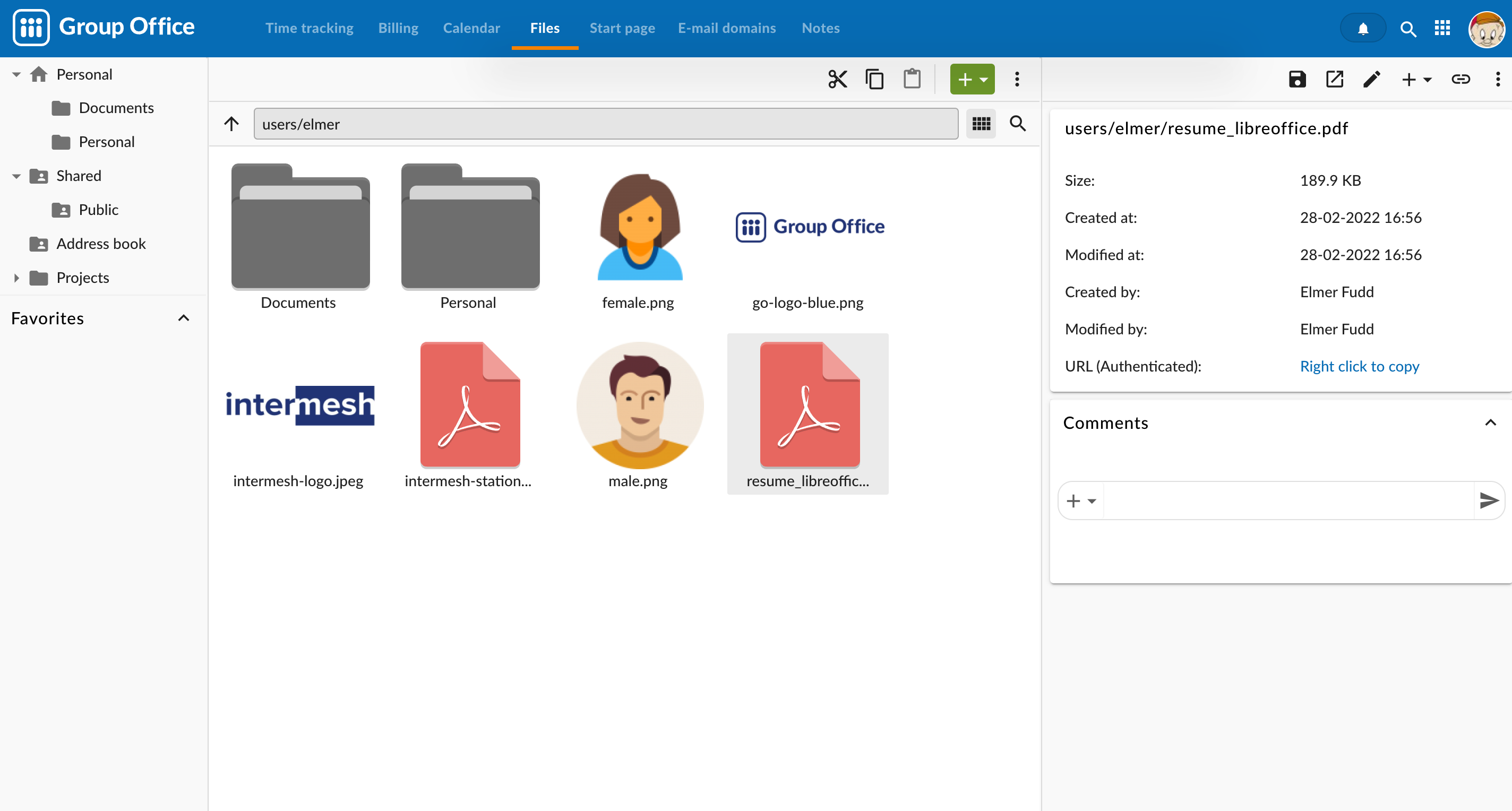
Home folder
The files module supports:
Share folders
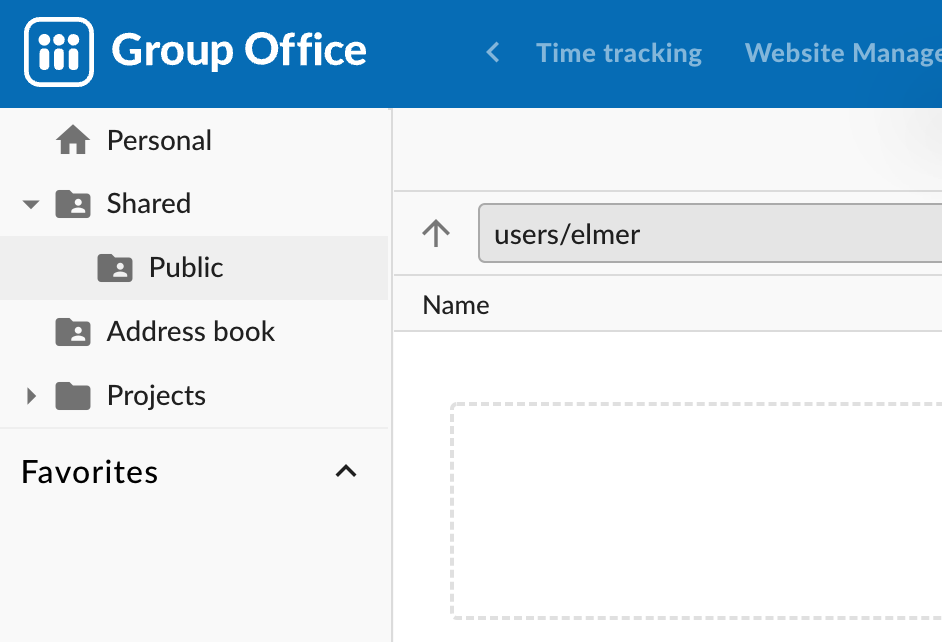
It’s easy to share folders in Group-Office. Any user can do it. If you want to create a shared folder for the whole organization it’s recommended to do this as the “admin” user. Take the following steps:
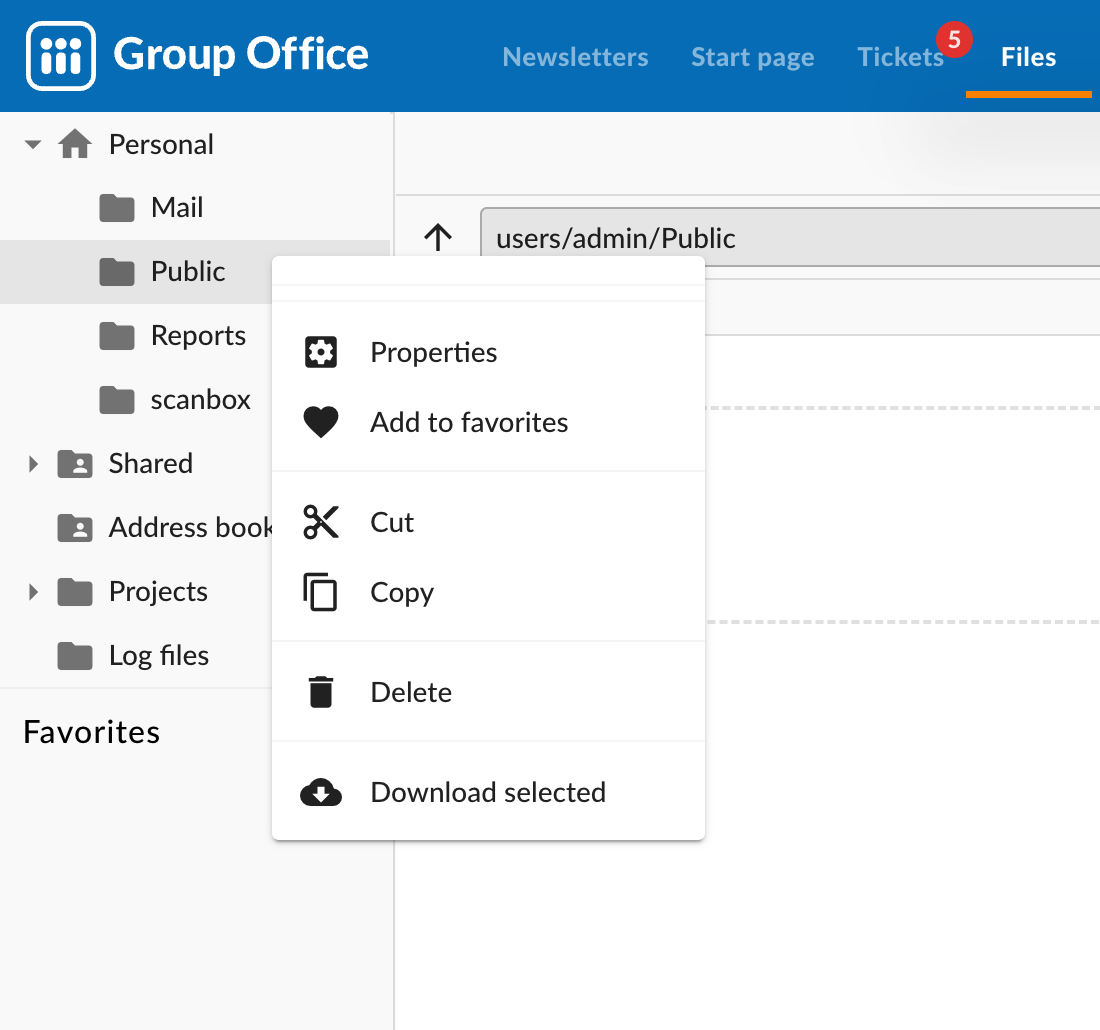
Right click on the folder that you want to share and click ‘Properties’
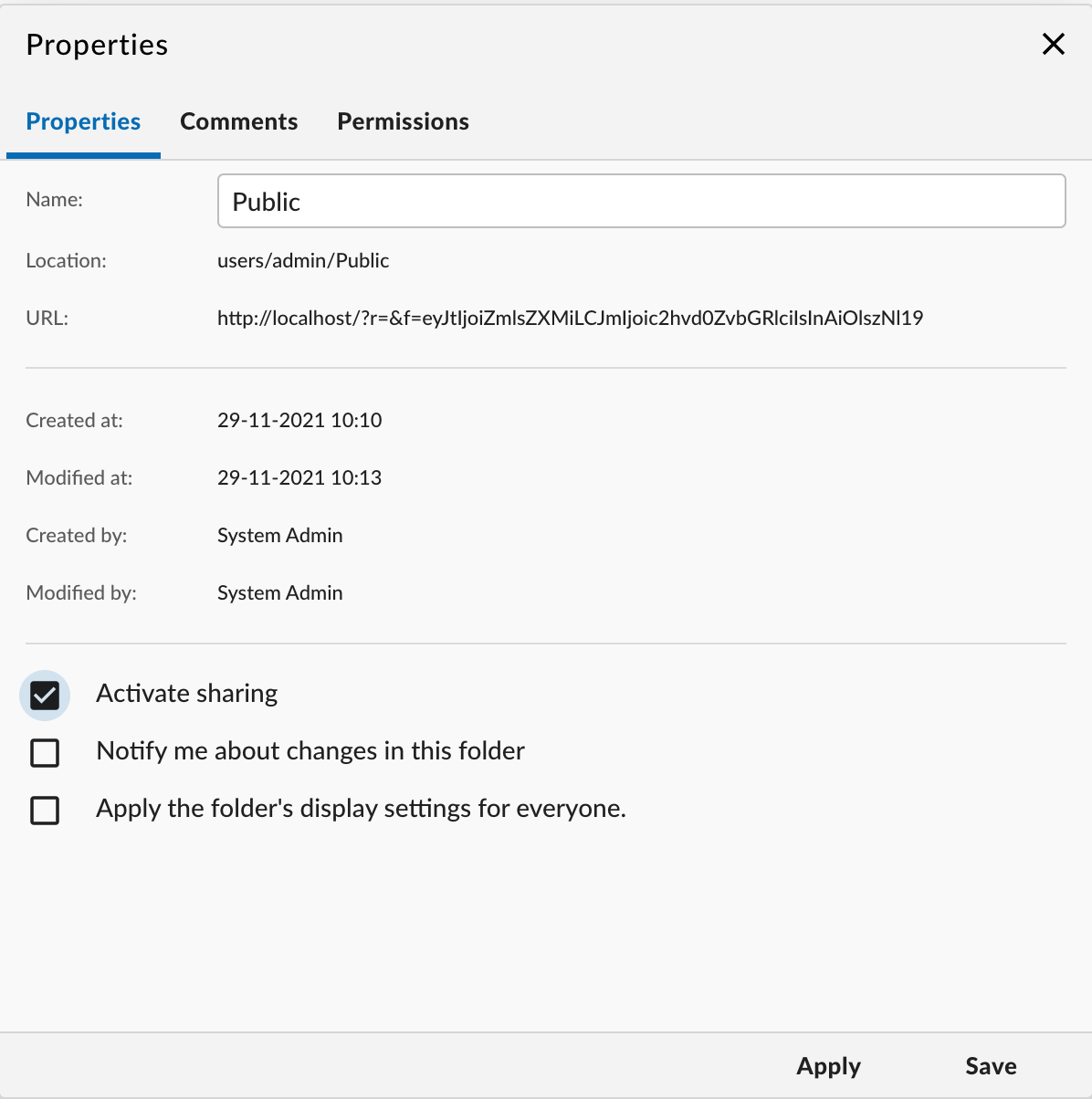
Check ‘Activate sharing’
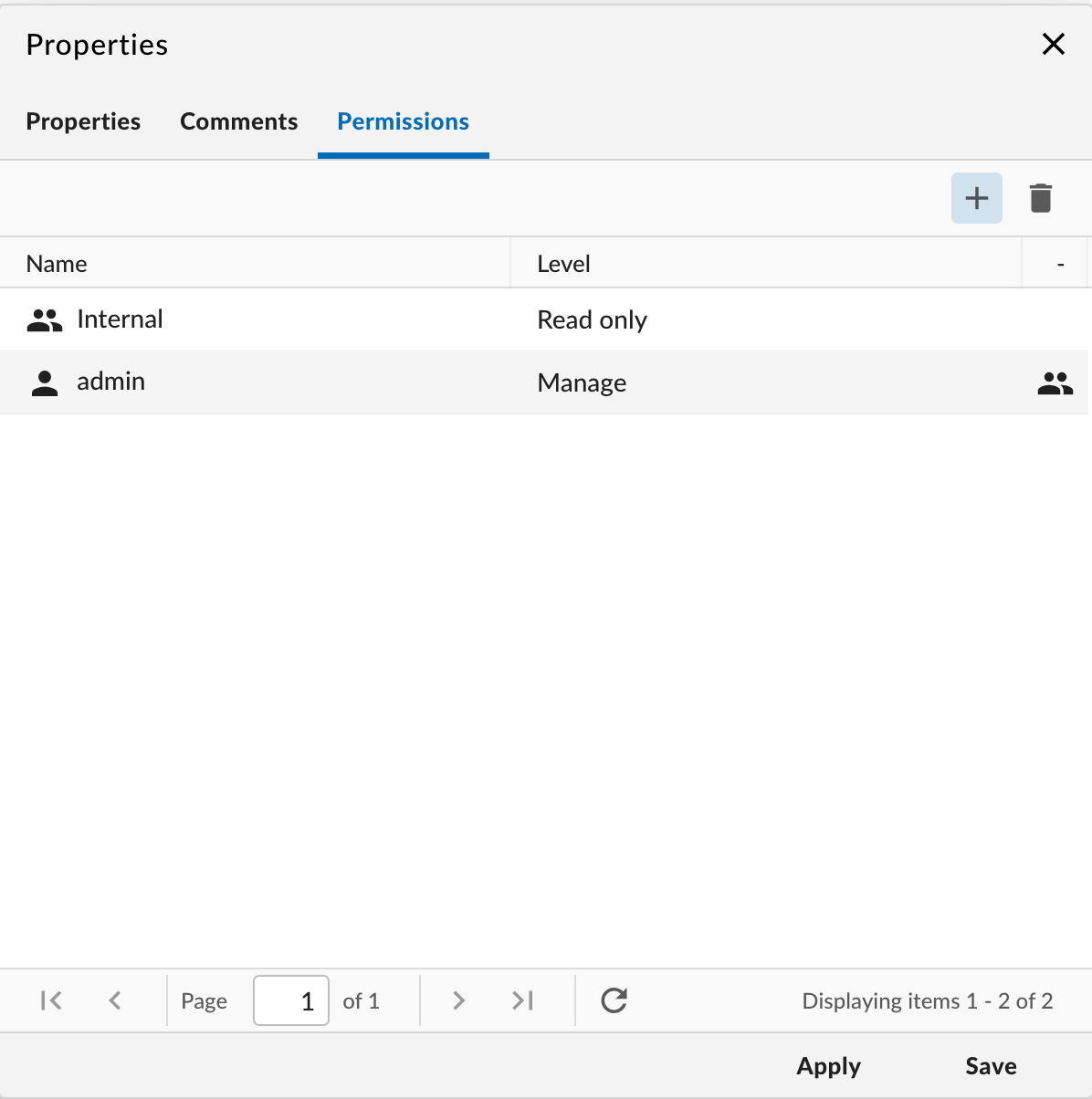
Add the right user groups in the ‘Permissions’ tab.
The folder will show up under shared for other users. Not for the user that shared it.
Note
Visibility of files is solely dependent on the permissions defined for its containing folder. There is no way to hide individual files except to move them in a private folder.
Opening files
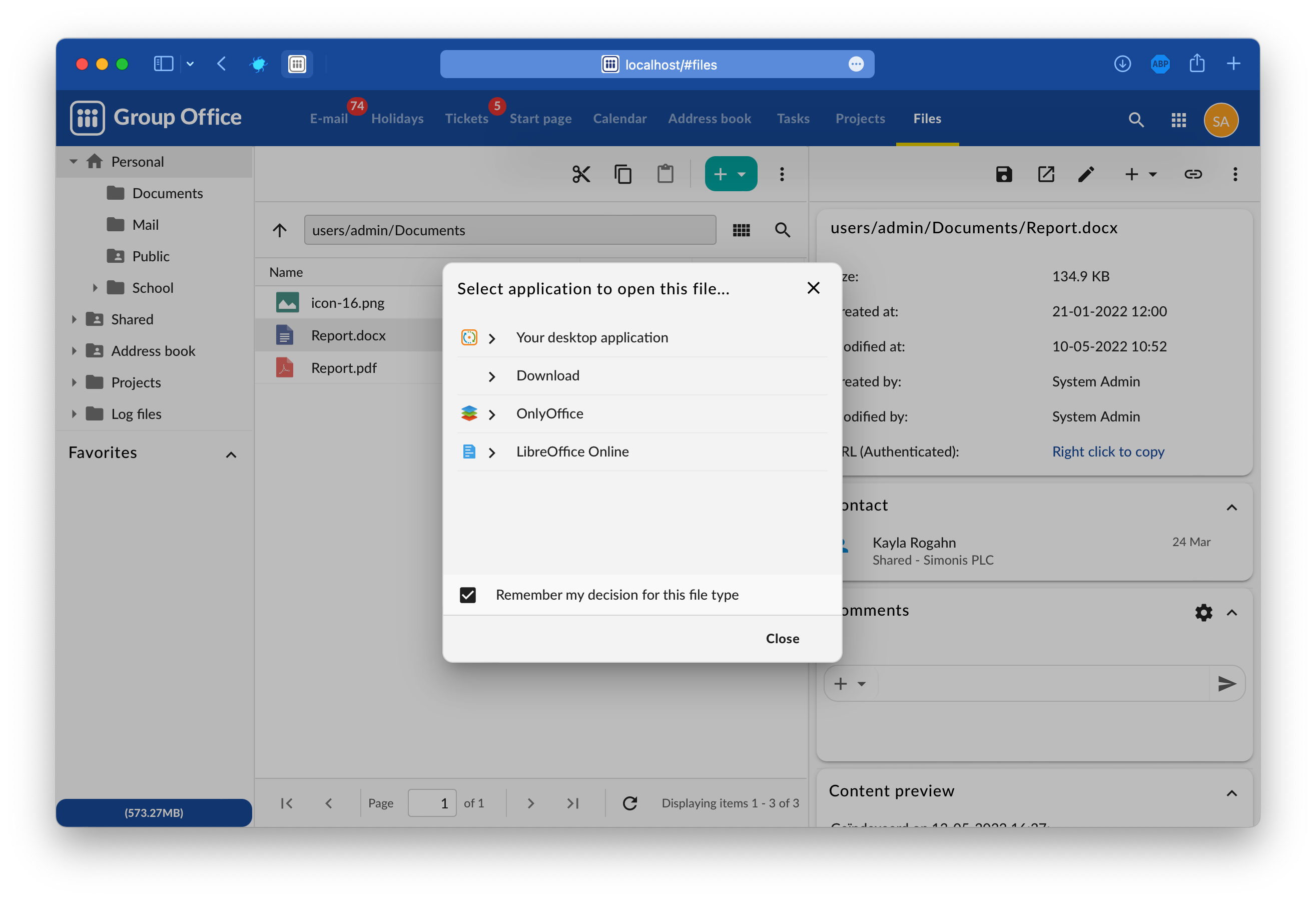
Opening files is as easy as a double click on the file of course. But you can also change the default action. For example you might want to edit text documents with Only Office, Microsoft Office Online or your own desktop application. You can view images in the online viewer or in a browser tab. To change this right click on a file and choose “Open with…”. Check the box “Remember my decision for this file type” to make it the default. Then choose your preferred action.
Sharing individual files
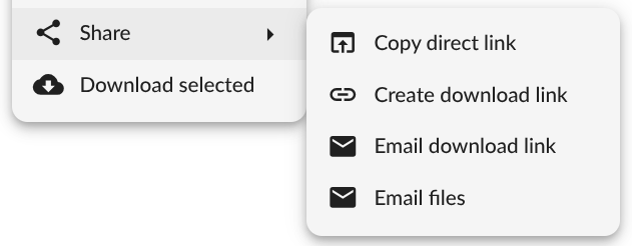
Depending on the file type and access to email, a user can share their files in the following ways:
1. Copy direct link: ill copy a direct link to the file to the clipboard. In order to use a direct link as copied to the clipboard, one should be logged into Group-Office and have access to the file’s parent folder. Otherwise, they will be redicerted to the front page.
2. Create download link: will generate a token and create a link for that. You can copy/paste that link from the file panel. The recipient of that link does not need to be logged in, as they access the file through the generated token. You can optionally expire the token on a certain date.
Email download link: Does the same as (2), but sends the link directly by email.
Email files: will attach the selected file(s) to a new email message as with any other email client.
Moving to trash versus deleting
As of versions 6.8.113 and 25.0.12, you can either delete a file entirely or move it to a trash folder. By moving files and folders into trash, the user can restore it to its original location if need be. The DEL key is mapped to moving a file to trash, whereas Ctrl+DEL will fully delete a file or folder.
When an item is moved to trash, its original permissions are kept. In other words, a user can only see a trashed item if they have permissions to its original parent folder.
Integrations
Assistant
The Group-Office Assistant is a small program that you can install on your Windows, MacOS or Linux computer. It will automatically download files opened from Group-Office and monitor it for changes. When the file is saved it automatically uploads it back to Group-Office.
It also assists in mounting a network drive.
Download it for:
Microsoft Office Online
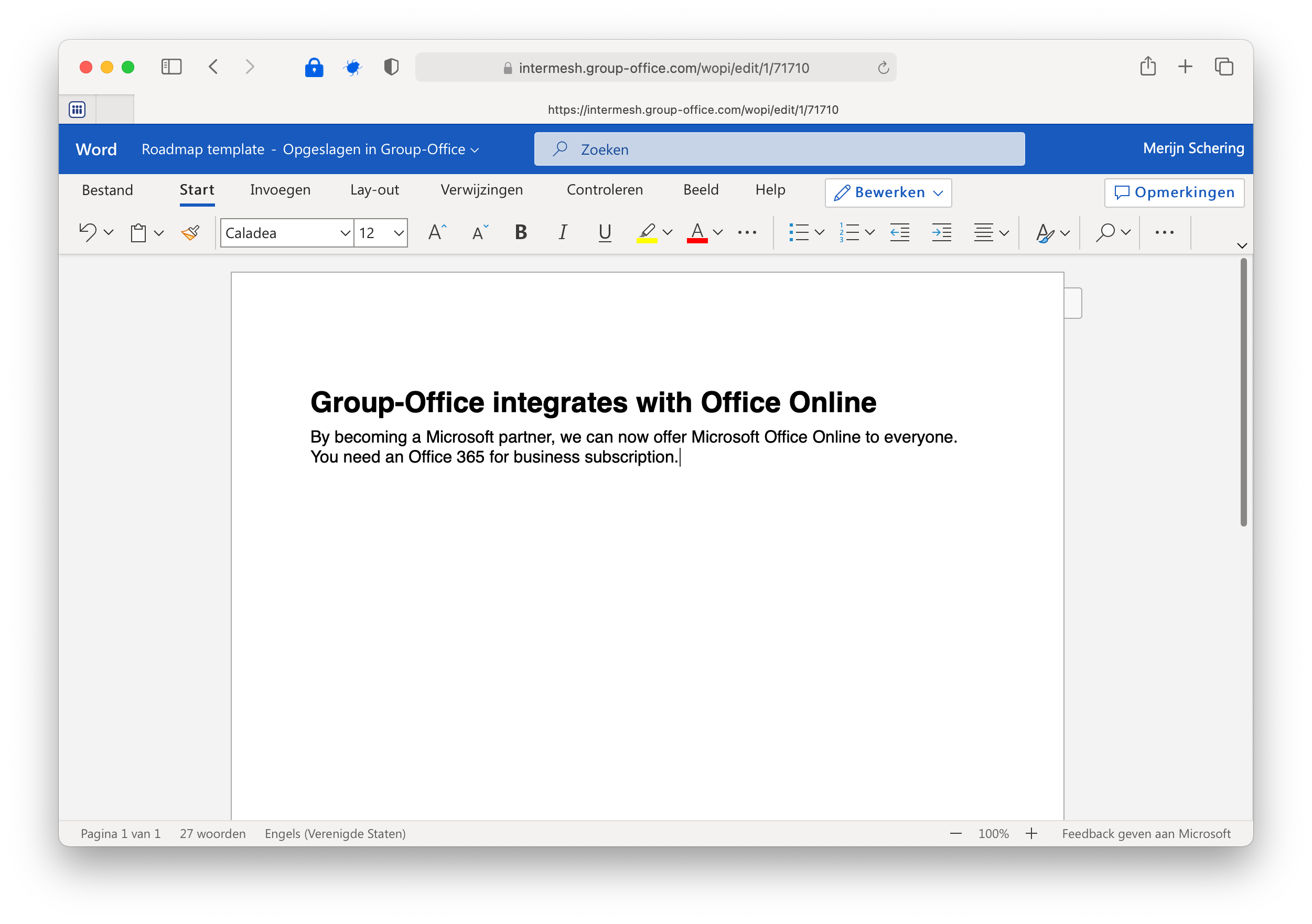
By becoming a Microsoft partner, we can offer Microsoft Office Online to everyone. You need an Office 365 for business subscription.
In our cloud version it’s already configured by default. Right click on a file and open with “Office Online” and make it the default if you desire.
n our cloud version it’s already configured by default. Now you can open a document in the files module with Office 365 by right clicking on a file and choose ‘Open with…’.
You can also host Office Online yourself and integrate it with Group-Office. Read more about that here:
https://docs.microsoft.com/en-us/officeonlineserver/office-online-server
Collabora Office
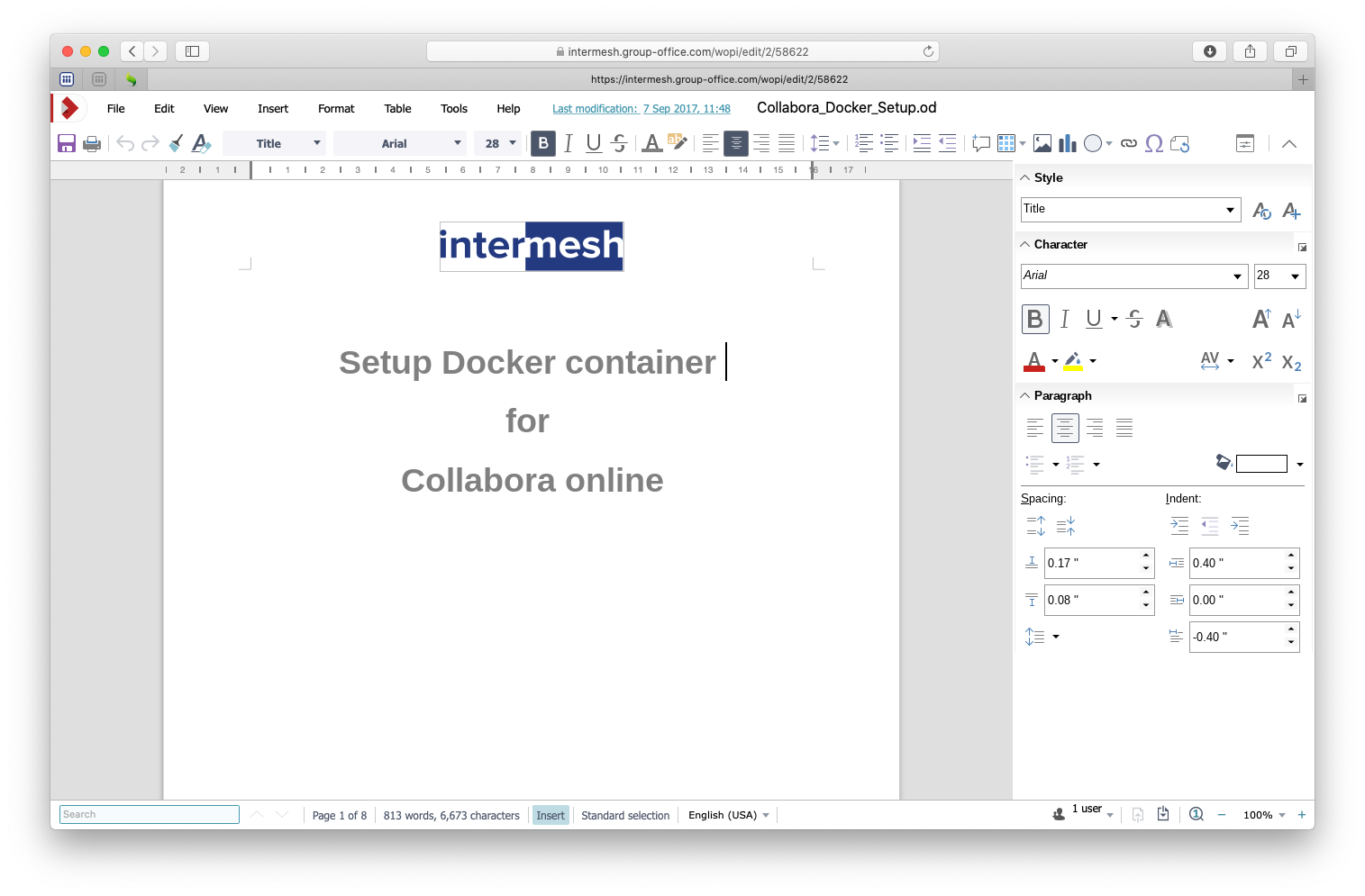
Collabora Office
With Collabora Online you can edit office documents in your browser. For installing read the Collabora Office installation page.
OnlyOffice
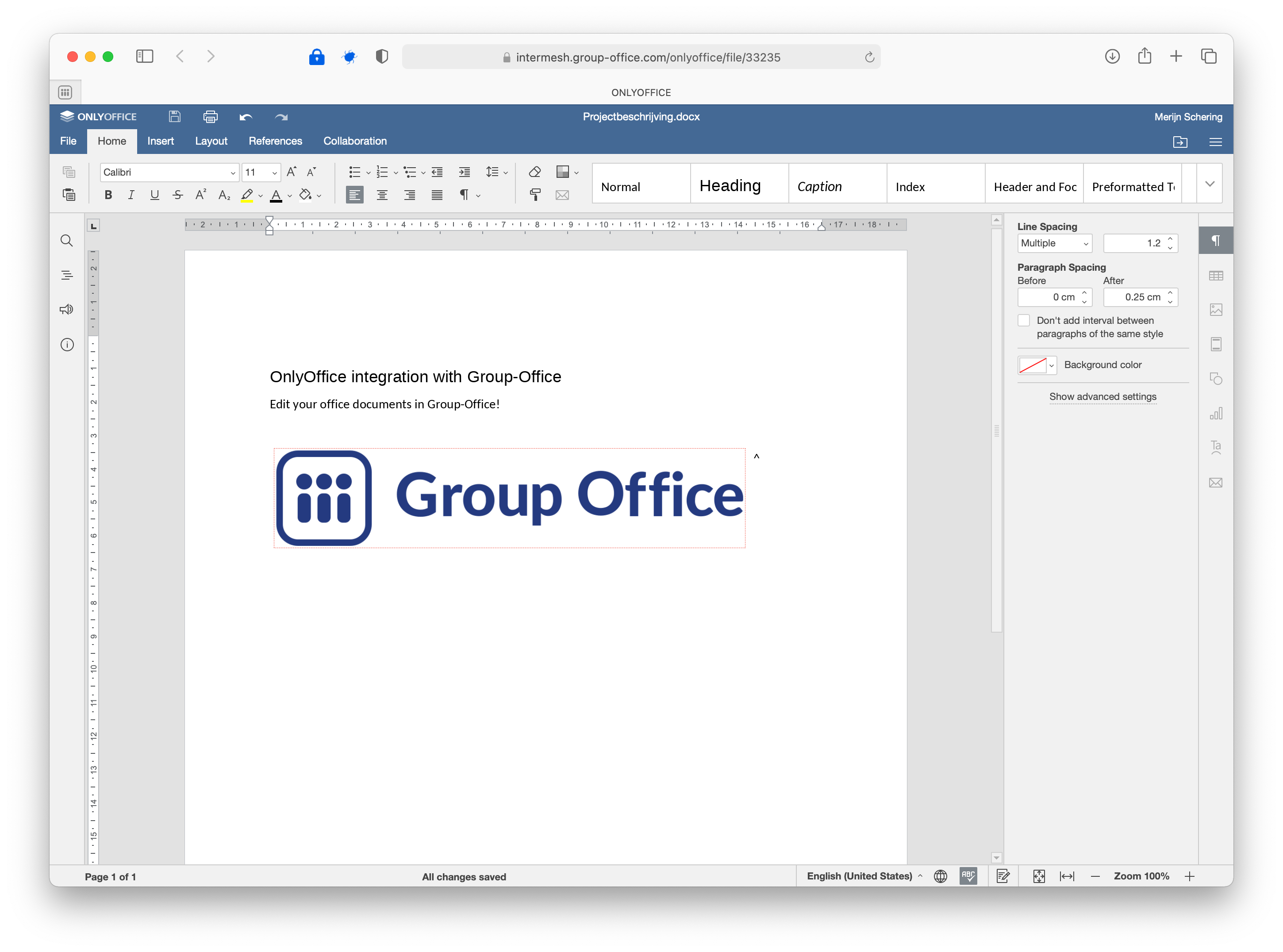
OnlyOffice
Run your private office with Group-Office and OnlyOffice.
Designed to make collaboration easy. A complete productivity suite to run your entire business with.
Edit Text Documents, Spreadsheets and Presentations online in your browser.
For installing read the OnlyOffice installation page.
WebDAV
You mount Group-Office as a network drive on your workstation.
For more information read the page: Connect a device.