MCP server
The MCP server module connects AI assistants, like Claude and ChatGPT, to GroupOffice with the Model Context Protocol. With it you can ask an assistant to, for example, find a contact, plan an appointment in your calendar, summarize the notes of a project or write a draft reply to an e-mail. It can do anything the user interface can possibly do if you allow the actions.
The module is part of the professional package.
Note
The MCP server module is in beta.
How it works
An AI assistant always acts as the user who connected it:
It can never see more than that user can. All permissions of GroupOffice still apply.
It can only use the items that the user selected when they connected it. For each item the user chooses if the assistant may only read it or may also change it.
It can’t send e-mail. It can save a draft that you check and send yourself in GroupOffice. Mail that GroupOffice normally sends when something is saved, like the comments of a support ticket, isn’t sent either.
It can make at most 120 requests per minute.
Install the module
Install the “MCP server” module at System settings → Modules.
Give the users or groups that may connect an AI assistant permission to use the module.
AI assistants on the internet, like claude.ai and ChatGPT, must be able to reach your GroupOffice. Make sure the URL in System settings → General is the public HTTPS address of your GroupOffice, because the server address of the MCP server is made with it.
Connect an AI assistant
Open My account and go to AI assistants.
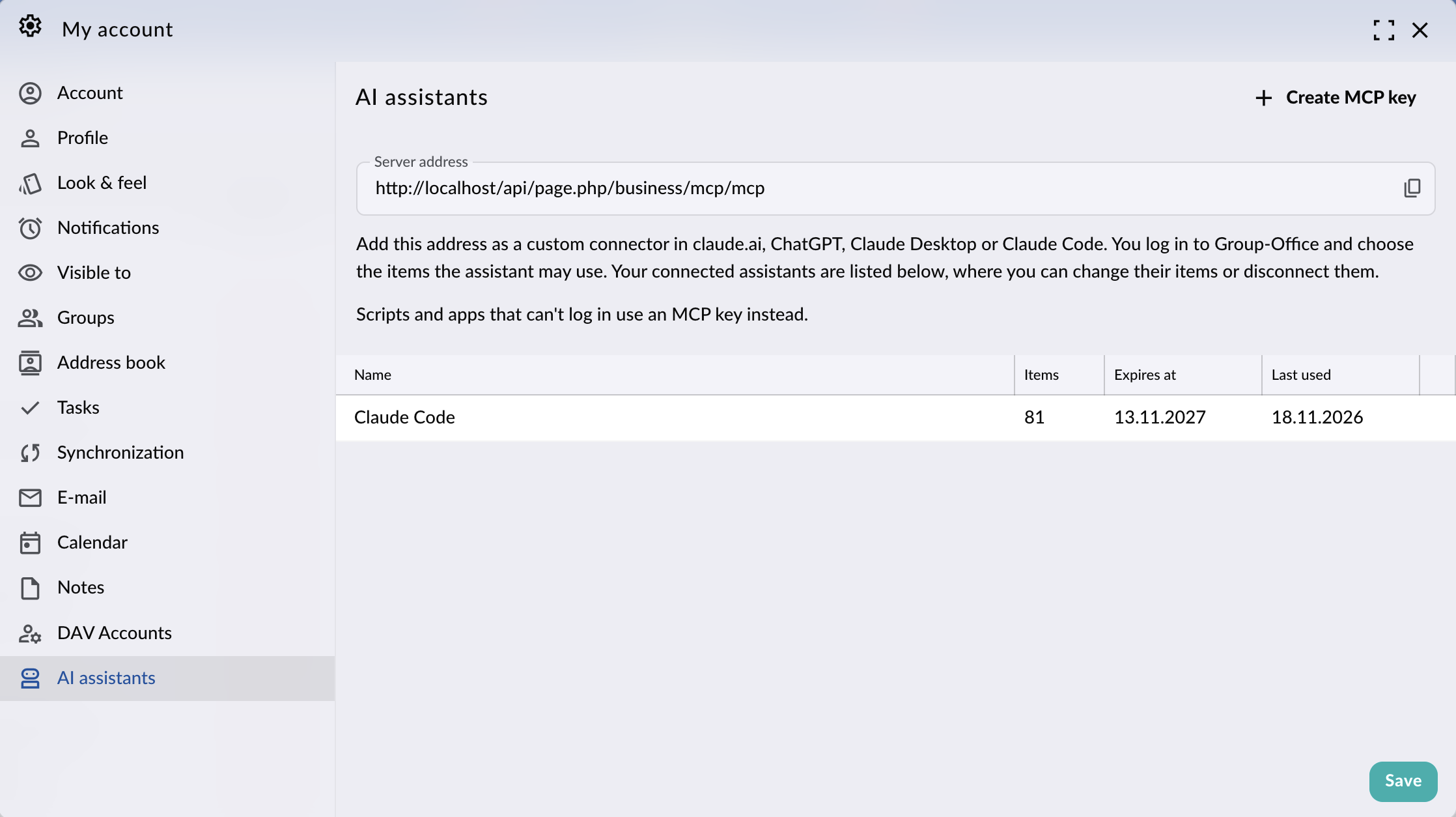
The AI assistants page in My account
Copy the Server address with the copy button.
Add this address as a custom connector in your AI assistant, like claude.ai, ChatGPT, Claude Desktop or Claude Code. For example, in Claude Code you run:
claude mcp add --transport http groupoffice https://groupoffice.example.com/api/page.php/business/mcp/mcp
The assistant opens GroupOffice in your browser. Log in if you aren’t already.
Select the items the assistant may read. Select Change next to an item to also let the assistant create, change and delete it. Use Select all and Change all to select all items at once.
Click Allow.
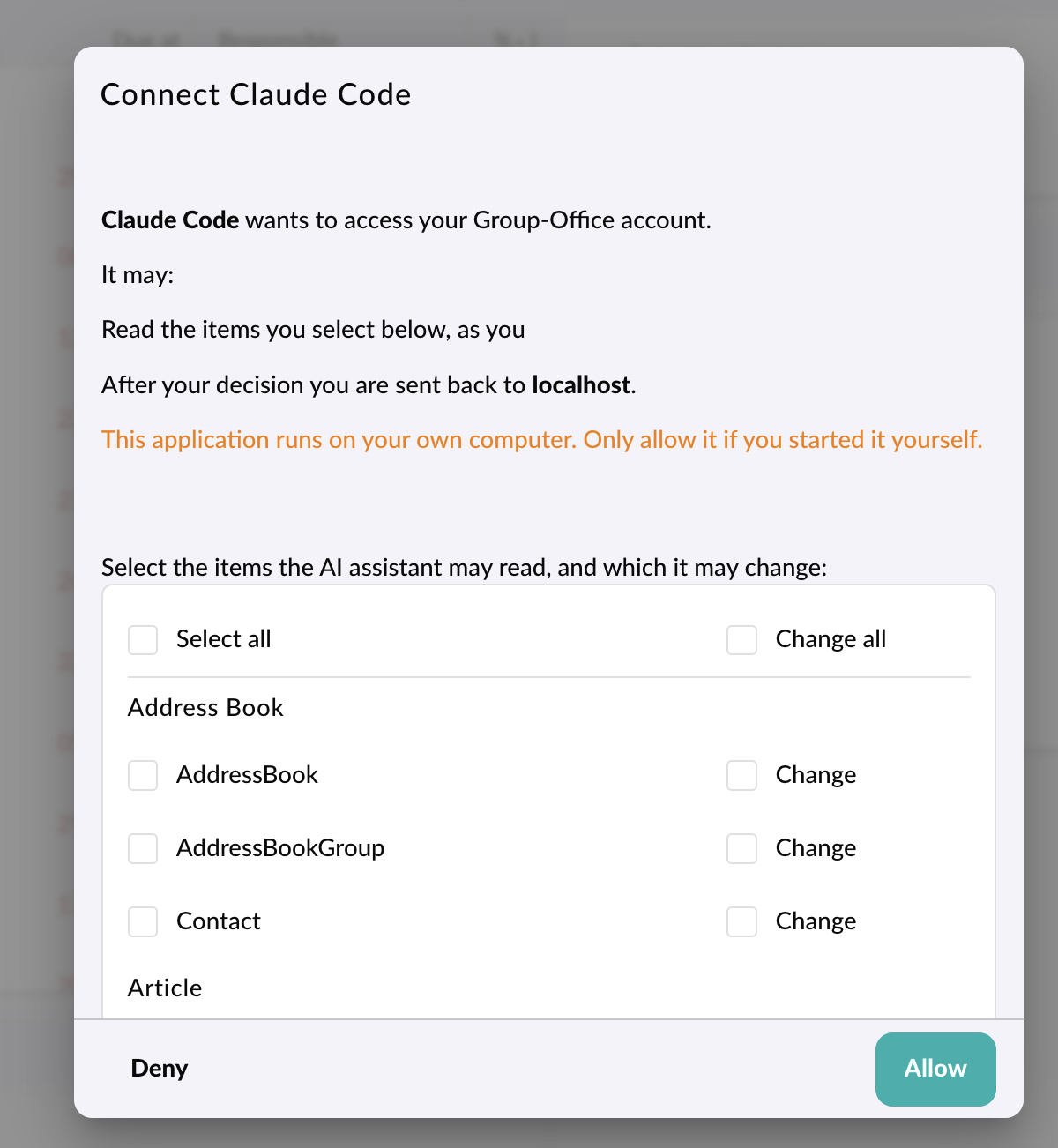
Allowing Claude Code to access GroupOffice
When the assistant runs on your own computer, like Claude Code or Claude Desktop, GroupOffice warns you about it. Only allow it if you started the assistant yourself.
The access of an assistant that you connected this way is valid for one year.
Manage connected assistants
Your connected assistants and MCP keys are listed on the AI assistants page with the number of items they may use, the date their access expires and the date they were last used.
To change the items of an assistant, double-click it, or click Edit in its more options menu (⋮).
To disconnect an assistant, click Delete in its more options menu (⋮). It can’t access GroupOffice anymore until you connect it again.
History
When the history module is installed, it also logs the changes that AI assistants make. Because an assistant acts as
the user who connected it, that user is shown as the user who made the change. The Request ID column shows that an
assistant made it: it starts with MCP: and the name of the assistant or MCP key, for example:
MCP: Claude Code JMAP Contact/set
MCP keys
Scripts and apps that can’t log in to GroupOffice use an MCP key instead. You can also use one for Claude Code on a computer without a browser.
Click Create MCP key on the AI assistants page.
Enter a Name, for example the name of the assistant or script.
Choose when the key Expires at. By default this is 90 days from now.
Select the items the key may read, and which it may change.
Click Save.
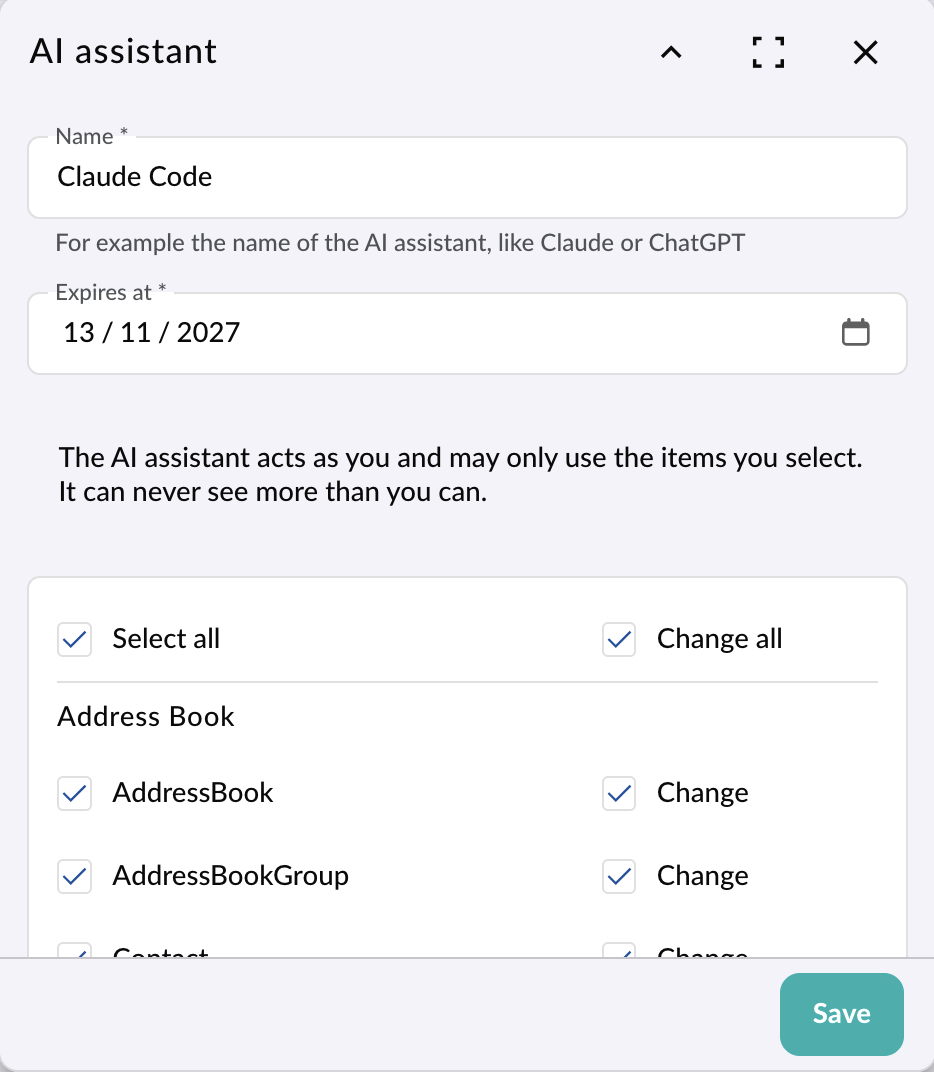
Creating an MCP key
GroupOffice then shows the key, the server address and the HTTP header to connect with, for example:
Authorization: Bearer <key>
It also shows the command to add the server to Claude Code with the key.
Warning
Copy the key right away. It’s not possible to view it again. Don’t paste the key into a chat with an AI assistant: anyone with the key can use your data.
Tools
The MCP server offers these tools to an AI assistant:
Tool |
Description |
|---|---|
|
The user the assistant acts as, the current date and time in the user’s time zone and the items it may use. |
|
The items the assistant may use, like contacts, calendar events or projects. |
|
The properties and filters of an item. |
|
Find and read items with the JMAP API. |
|
Create, change and delete items with the JMAP API, if the assistant may change them. |
|
Upload a file, like a document the assistant wrote, to attach it to an item. |
When you select one or more e-mail accounts, the assistant can also use these tools:
Tool |
Description |
|---|---|
|
The e-mail accounts it may use, with their folders and the number of unread messages. |
|
Search the messages in a folder. |
|
Read a message. |
|
Save a message as a draft in the Drafts folder. It’s not sent: you check and send it in GroupOffice. |