 Merijn Schering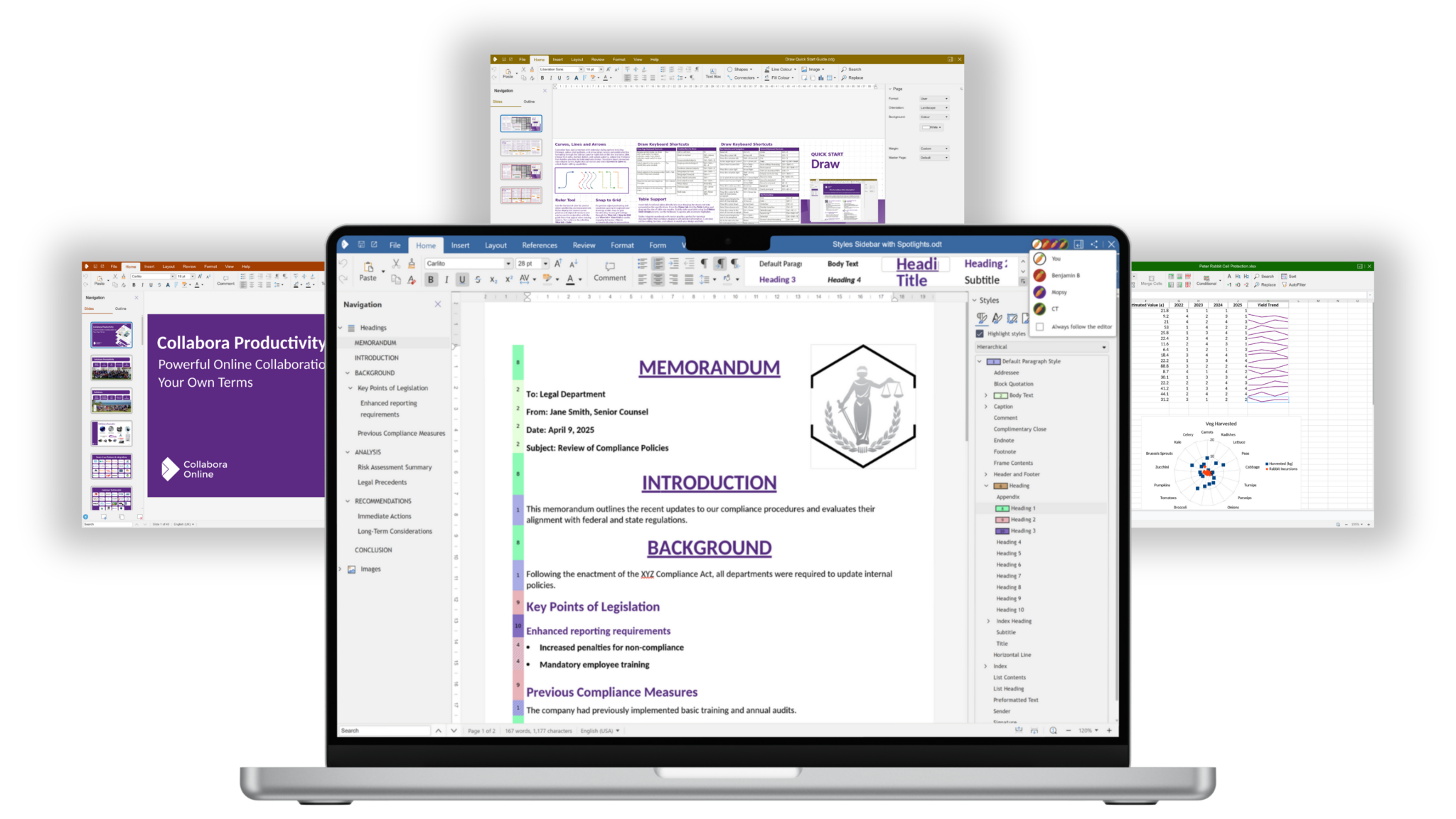


With the release of GroupOffice 26.0, real-time document collaboration has never been easier. By integrating Collabora Online, users can create and edit Microsoft Word and OpenDocument documents directly within their browser. In this guide, we will walk through the process of setting up GroupOffice and Collabora using Docker Compose.
Step 1: Docker Compose Configuration
To get started, can clone our docker-groupoffice repository:
git clone https://github.com/intermesh/docker-groupoffice.git
The compose configuration uses the official GroupOffice 26.0 image alongside the Collabora Code image.
To start the container run the following command in a terminal from the groupoffice-docker directory:
docker compose -f compose.yaml -f compose.collabora.yaml up -d
Step 2: Find your local network address
This setup is for local testing, but we can't use localhost as hostname, because the Collabora container has to connect back to the GroupOffice container and it can't be done with localhost. It can however connect using your local network address. In my case this was 192.168.1.7.
On Linux you can run this command in aterminal to find your local network address:
ip a
On MacOS:
ifconfig
On Windows:
ipconfig
Step 3: Install GroupOffice
Open the GroupOffice installer by navigating your browser to the LAN address on port 9090 (http://192.168.1.7:9090). Complete the installer and login to GroupOffice.

Step 3: Accessing the System Settings
Once you're logged in. Navigate to the top-right user menu and select System settings.

Step 4: Configuring the Office Online Module
In the System Settings sidebar, click on Office Online. Here, you will add a new service for Collabora Online. Click the "+" button and enter the URL of your Collabora container. In our example, using a local network IP, the URL is http://192.168.1.7:9980.

Ensure the service is saved and appears in your list as Collabora Online Development Edition:

Step 4: Creating Your First Document
Now that the integration is active, head over to the Files module. Click the "Add" (+) button, and you will see new options to create Microsoft Word documents or Open-Office Text documents.

Step 5: Editing in the Browser
Double-click your new document to open the Collabora Online editor. You can now type, format text, and collaborate with other users in real-time, all from the GroupOffice collaboration platform.

Conclusion: This setup provides a powerful, self-hosted alternative to cloud office suites, keeping your data within your own infrastructure while providing modern collaborative features.