 Merijn Schering


GroupOffice now has an MCP server. It connects AI assistants like Claude and ChatGPT to your GroupOffice through the Model Context Protocol, an open standard for giving assistants access to apps and data.
What can you do with it?
Once connected, you can ask your assistant in plain language to work with your GroupOffice data. For example:
- "Add a time entry on the MCP server project for the past two hours."
- "Plan a meeting with Anna next Tuesday afternoon."
- "Summarize the notes of the website project."
- "Write a draft reply to the last e-mail from Peter."
- "Find the phone number of our contact at Acme."
The assistant can do anything you can do in the user interface, as long as you allow it. It works with contacts, calendars, tasks, projects, notes, support tickets, e-mail and the other modules you have installed.
You stay in control
An AI assistant always acts as the user who connected it, so it never sees more than you can. All GroupOffice permissions still apply.
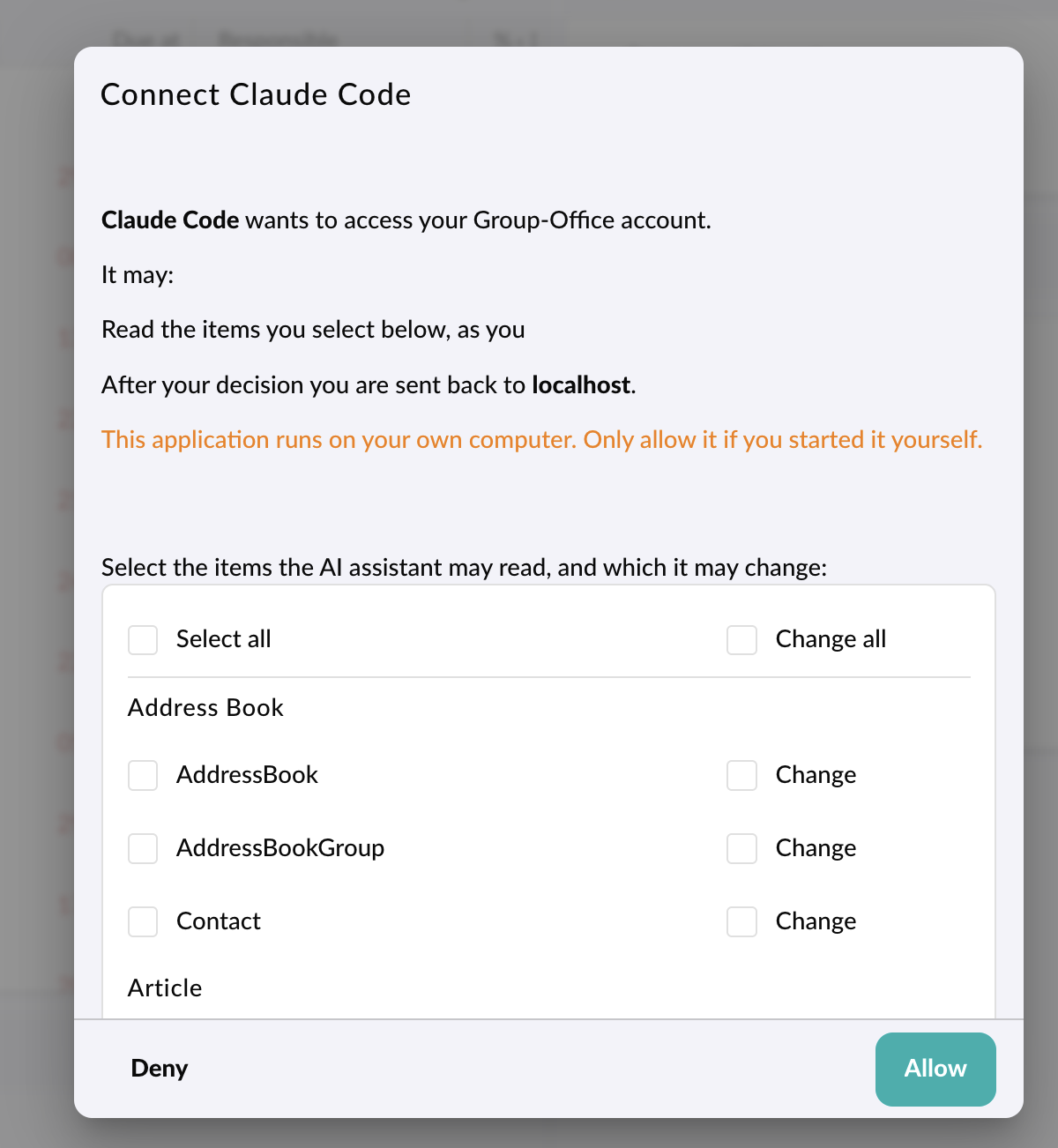
When you connect an assistant, you choose which items it may use. For each item you decide whether it may only read it, or also create, change and delete it.
A few more safeguards:
- No e-mail is sent. The assistant can save a draft, which you check and send yourself. Mail that GroupOffice normally sends on save, like support ticket comments, isn't sent either.
- Every change is logged. With the history module installed, changes by an assistant show up with a request ID like
MCP: Claude Code JMAP Contact/set, so you can always see what it did. - Access expires. A connected assistant has access for one year, and you can disconnect it at any time.
- Rate limited. An assistant can make at most 120 requests per minute.
Connecting an assistant
- Your administrator installs the "MCP server" module and gives you permission to use it.
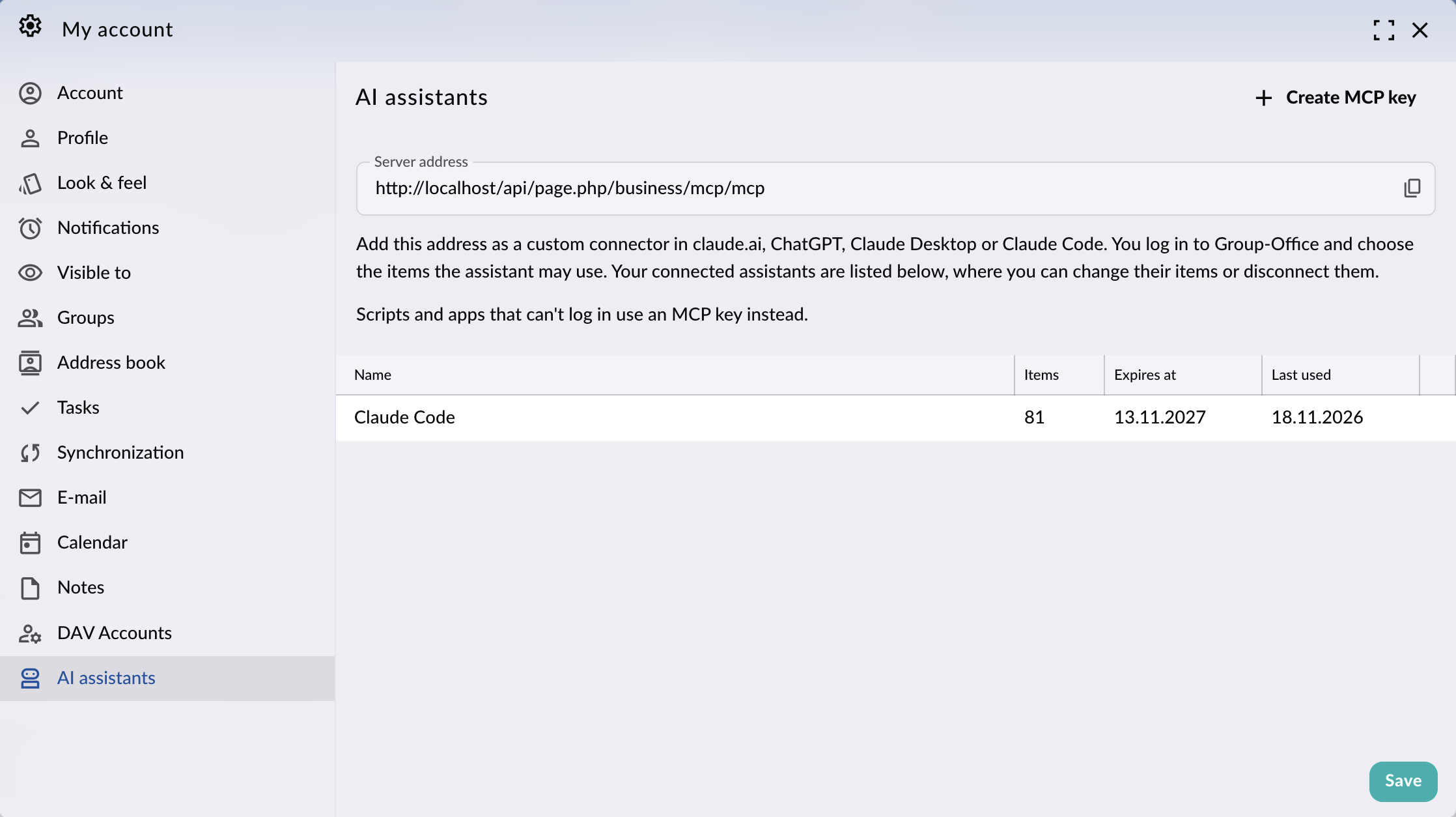
- In GroupOffice, open My Account and go to AI assistants.
- Copy the Server address.
- Add it as a custom connector in claude.ai, ChatGPT, Claude Desktop or Claude Code.
- The assistant opens GroupOffice in your browser. Select the items it may use and click Allow.
In Claude Code, for example, you add the server with:
claude mcp add --transport http groupoffice https://groupoffice.example.com/api/page.php/business/mcp/mcp
On the same AI assistants page you can see all connected assistants, when they were last used and when their access expires. You can change their items or disconnect them from there.
MCP keys for scripts
Scripts and apps that can't log in through a browser can use an MCP key instead. You choose a name, an expiry date and the items the key may use, and GroupOffice gives you the key and the HTTP header to connect with. This is also handy for running Claude Code on a server without a browser.
Available now
The MCP server module is part of the professional package and is currently in beta. Because cloud assistants like claude.ai and ChatGPT connect over the internet, your GroupOffice must be reachable on a public HTTPS address.
Read the MCP server documentation for all the details. We'd love to hear how you use it: let us know through support or on GitHub.